
Agent 4: Text to Video with Avatars
I wanted my AI agents to create and publish educational videos without me touching a single button. Here's how I connected HeyGen, Claude, and YouTube into one automated pipeline using two custom MCP servers — and what I learned along the way.
01 — Getting started with HeyGen
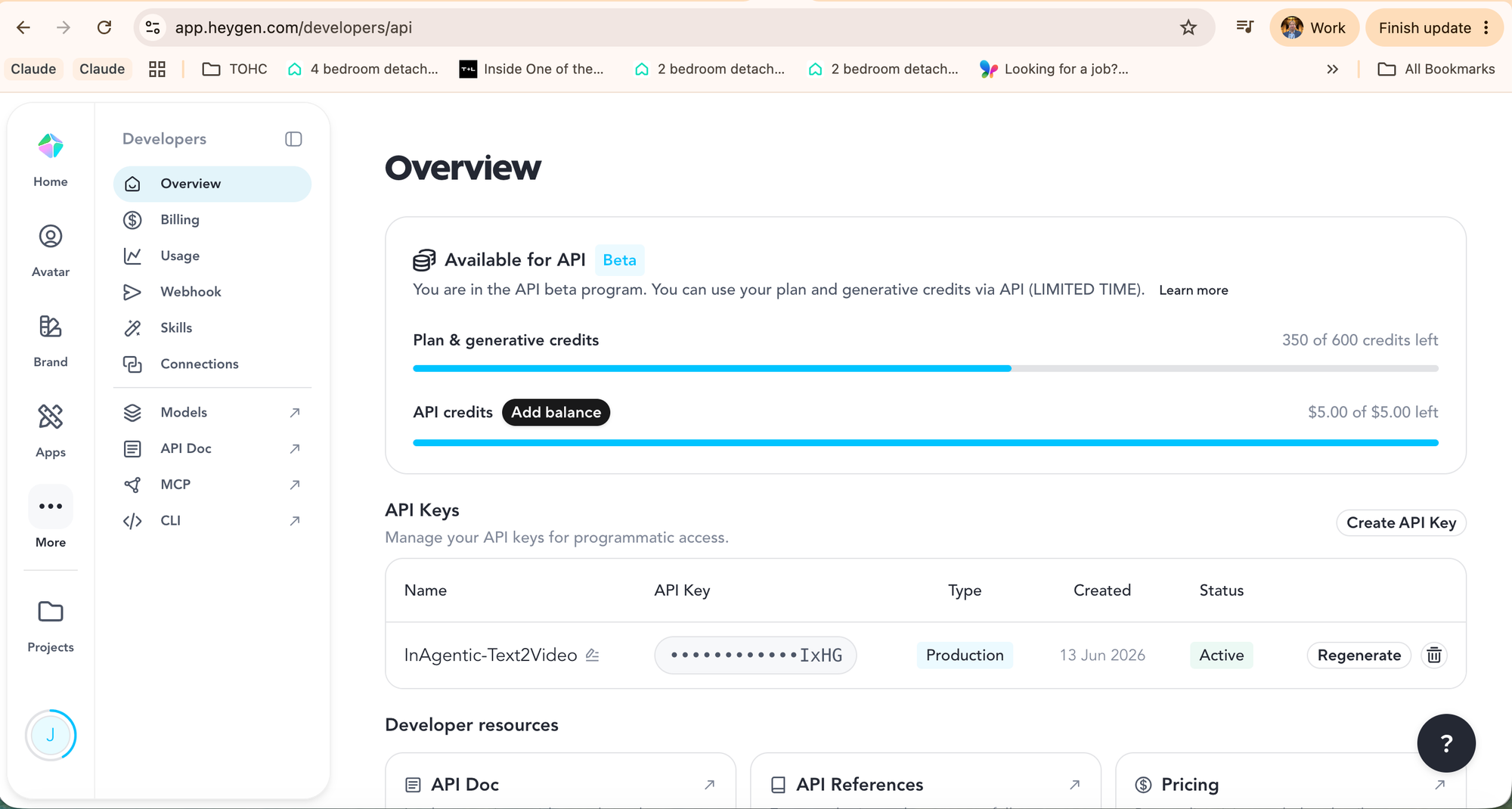
HeyGen is an AI video generation platform that lets you create studio-quality videos using a digital avatar — in this case, a personalised avatar of me, Jon Axel Sunnehall. Instead of recording myself over and over for every piece of content, I can pass text into HeyGen via API and it renders a video of my avatar delivering it.
The first step is straightforward: navigate to Developers → Overview and create an API key. You can see here the key named InAgentic-Text2Video — a production key created on 13 June 2026. You'll also need to top up API credits; HeyGen charges per render based on video duration. I started with $5 of API credits, enough to test the full pipeline several times.
Note: HeyGen offers both plan credits and separate API credits. Make sure you top up the API credits specifically — plan credits don't carry over to programmatic API calls.
02 — A destination for every video
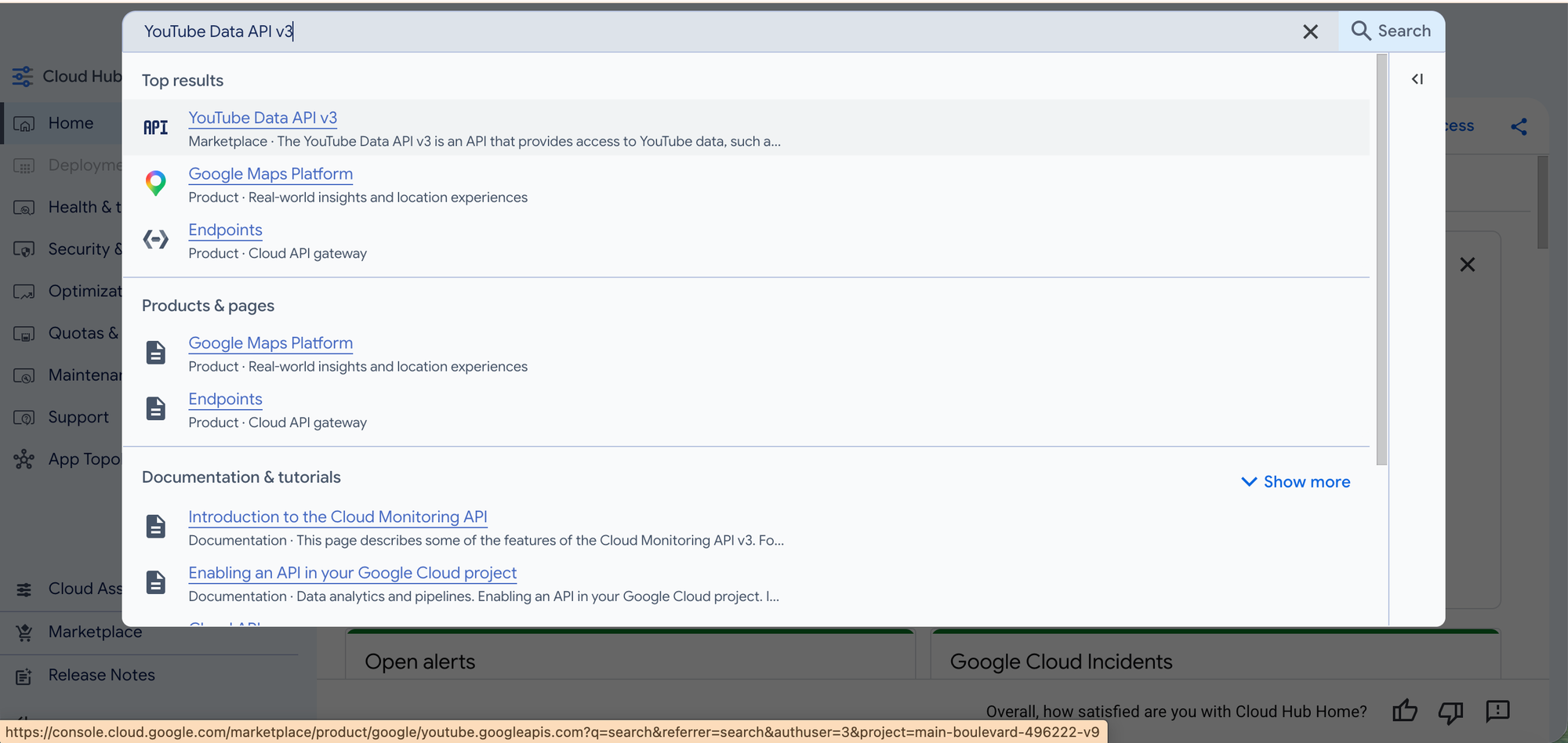
Every video the agent creates needs somewhere to live. I chose YouTube as the distribution channel — it's where the audience already is, and the YouTube Data API makes programmatic uploads straightforward.
In Google Cloud Console, search the Marketplace for YouTube Data API v3 and enable it on your project. Then generate OAuth 2.0 credentials. The key detail here: uploading to a channel requires OAuth with user consent, not just a service account key. You'll go through the OAuth flow once to obtain a refresh token, which your MCP server stores and reuses for all future uploads — so you never have to authorise again.
03 — Building the MCPs with Claude Code
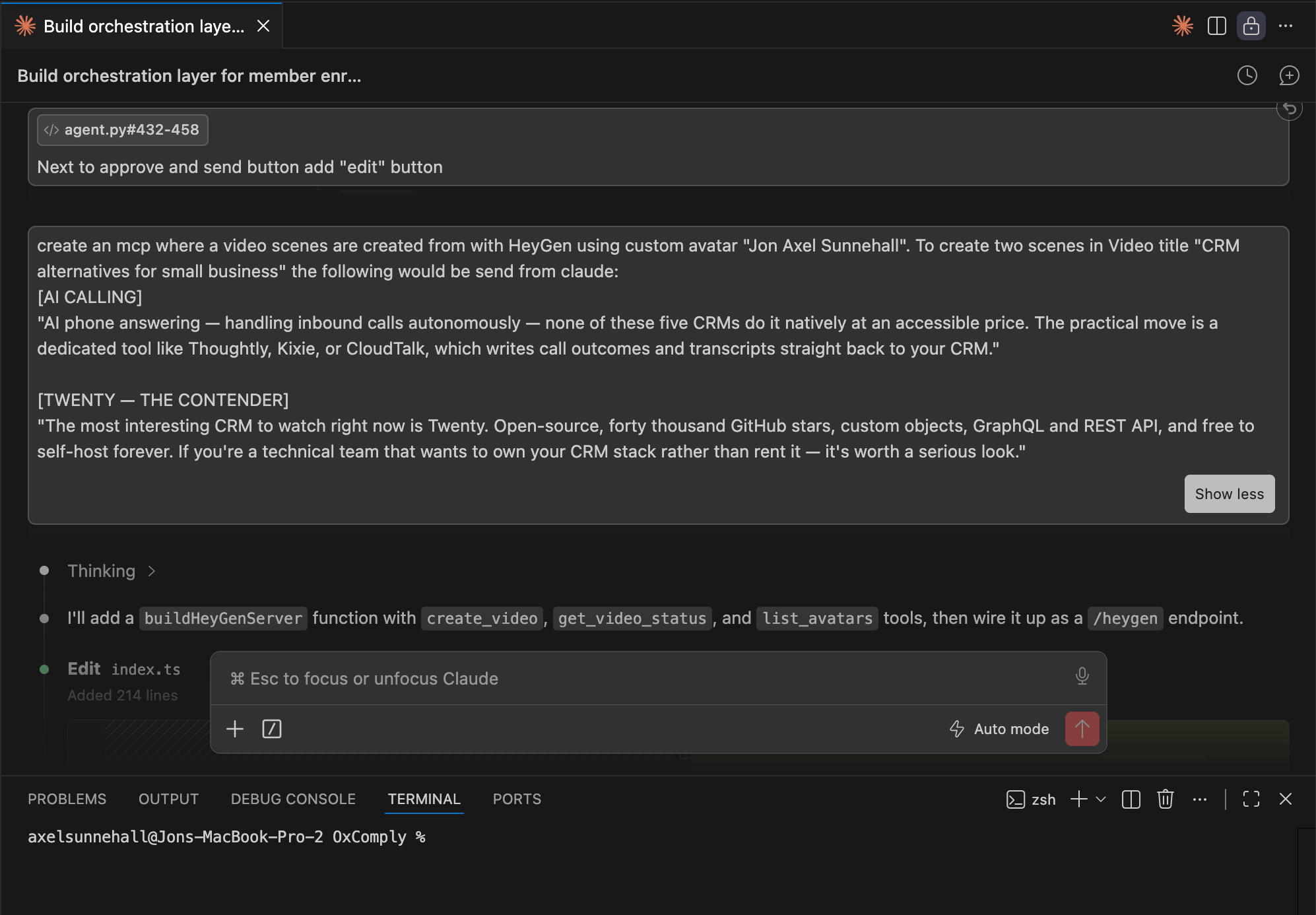
Here's where it gets interesting. I used Claude Code inside VS Code to write both MCP servers. You can see Claude mid-task: it's just decided to add a buildHeyGenServer function with create_video, get_video_status, and list_avatars tools, wiring them up to a /heygen endpoint. 214 lines added in a single edit.
I built two servers: text2video for triggering HeyGen renders, and inagentic-youtube for uploading finished videos. Both are deployed at mcp.inagentic.ai.
HeyGen does offer a pre-built MCP, but I chose to build my own for a deliberate reason: vendor independence. By owning the MCP layer, I can swap HeyGen out for another generative video tool — Runway, Synthesia, Sora — without changing anything in the agent. The interface stays stable; only the implementation changes.
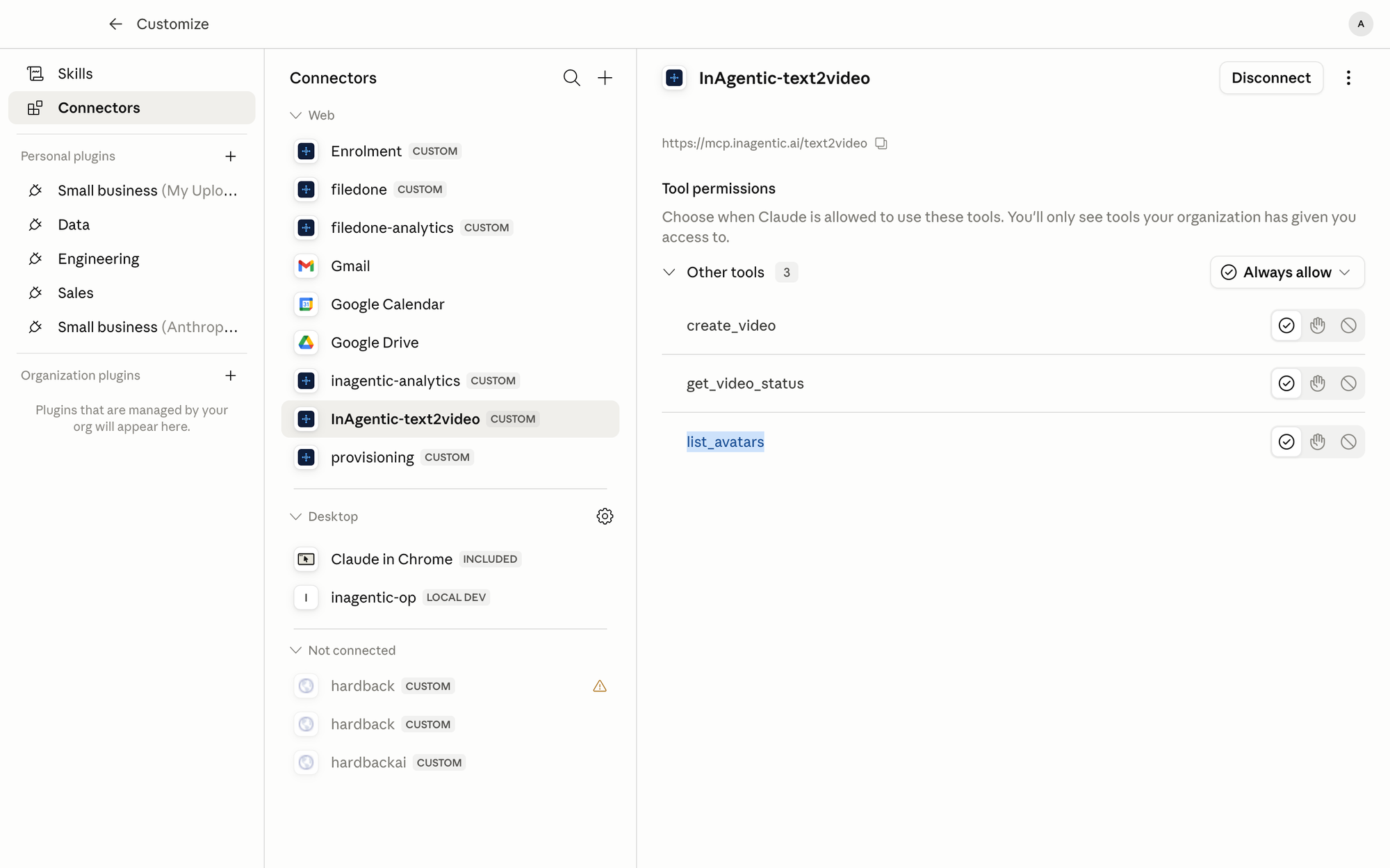
Once deployed, the MCP shows up in Claude's connector settings at https://mcp.inagentic.ai/text2video. You can see the three tools exposed to agents: create_video, get_video_status, and list_avatars — all set to Always allow. Any Claude agent or project can now call these tools directly.
// Tools registered on the /heygen endpoint
const tools = [
  "create_video",              // Render a new video from template + slide data
  "get_video_status",          // Poll render progress by video ID
  "list_avatars",              // Discover available avatars
  "list_templates",            // Discover available templates
  "create_video_from_template" // Render using a saved template
]
04 — The 7-image template
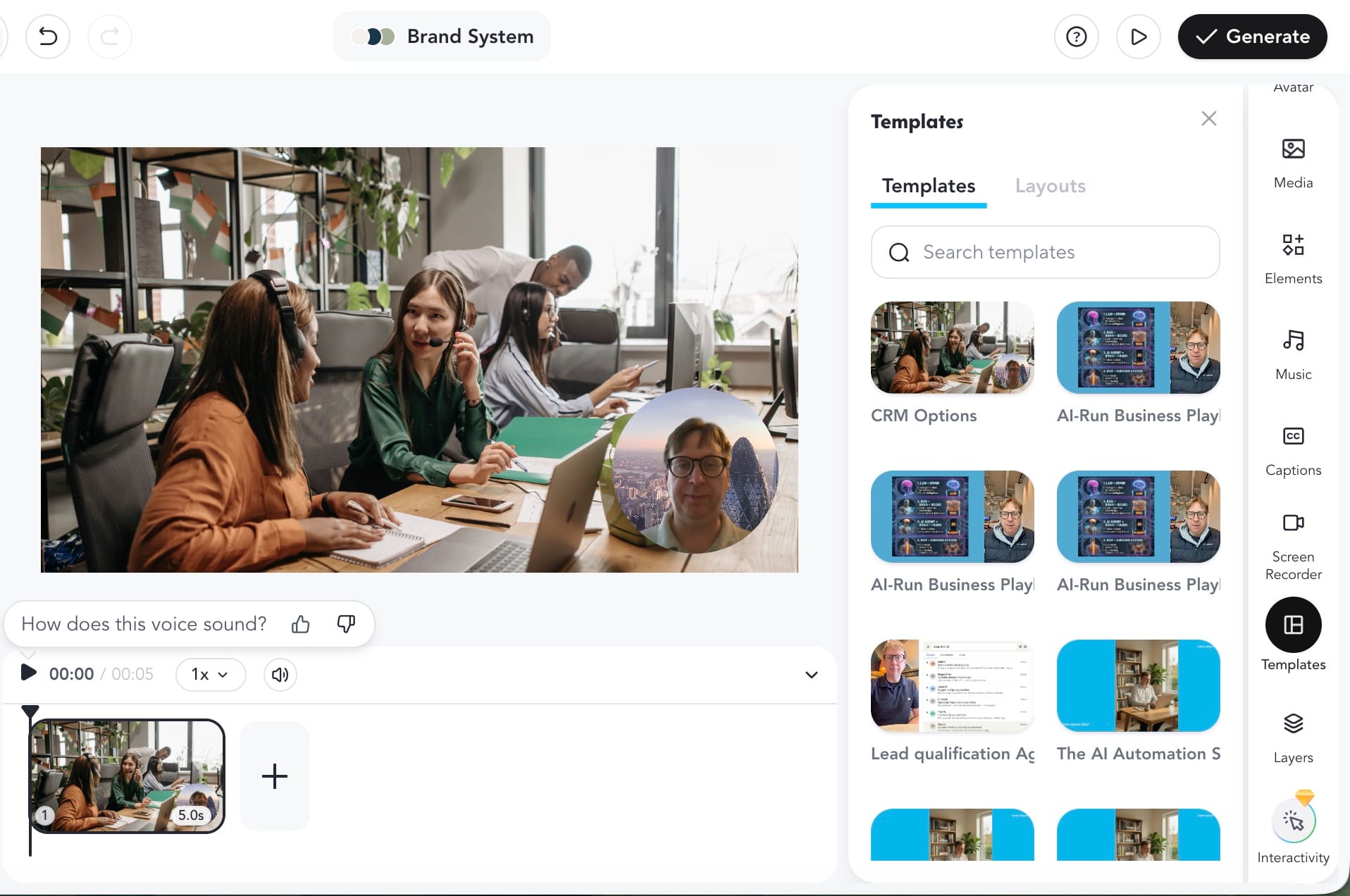
Inside HeyGen I built a reusable template called "CRM Options" — visible in the Templates panel on the right. The structure is what matters: a fixed layout with 7 image placeholder slots across scenes, with my avatar appearing as a circular overlay and delivering a voice-over script on each slide.
The concept is simple and repeatable. Each image illustrates a step or concept; the avatar talks the viewer through it. Think of it as a screencasted tutorial format, but generated entirely from code. When the agent calls create_video_from_template, it passes the 7 images and the voice-over text for each scene — HeyGen handles all the rendering, transitions, and audio sync.
Why a fixed template? It means the agent never has to make layout or design decisions. It just fills the slots. This keeps the agent prompt simple and the output visually consistent — every video looks branded and intentional, even though no human touched it.
05 — Writing the content agent
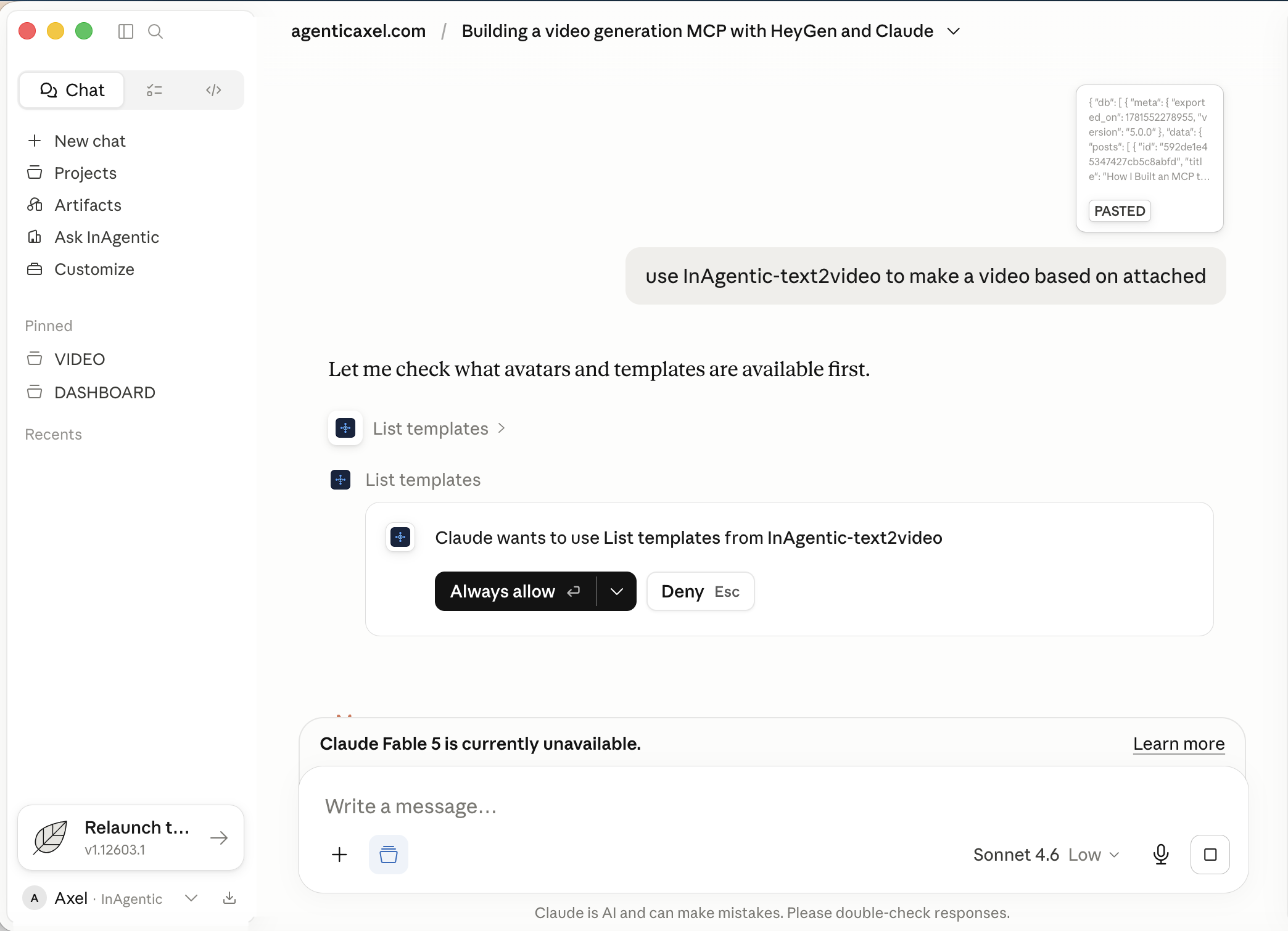
With the MCPs in place, I wrote a Claude agent whose sole job is to produce video content. You can see it here working through the script for this very tutorial — writing out image references and voice-over copy for each of the 7 slides, one scene at a time.
Given a topic, the agent: determines the 7 images needed (screenshots, diagrams, or illustrations for each step); writes the avatar voice-over for each slide — concise, instructional, matching the tutorial tone; then calls create_video_from_template with the images and scripts packed into the template's slot format.
The agent prompt is deliberately short. It doesn't need to know anything about rendering or uploading — that's the MCP's responsibility. The agent is purely a content strategist: topic in, structured slide data out.
06 — Waiting for the render: exponential backoff
HeyGen renders aren't instant. After calling create_video, the API returns a video ID and a status of processing. The agent then enters a polling loop: wait, check status via get_video_status, then either proceed or wait longer.
Rather than hammering the API every few seconds, I implemented an exponential backoff strategy. The first check happens after 3 minutes. If the video still isn't ready, the next wait doubles to 6 minutes, then 12, and so on. This is gentle on the API, avoids rate limits, and works cleanly inside a long-running agent session.
- Attempt 1 — wait 3 minutes, then check
- Attempt 2 — wait 6 minutes, then check (×2)
- Attempt 3 — wait 12 minutes, then check (×2)
- Attempt 4 — wait 24 minutes, then check (×2)
Once get_video_status returns completed, the agent grabs the video URL and immediately passes it to the inagentic-youtube MCP tool to upload directly to the channel — title, description, and tags all included.
07 — Video live, or kick off the next one
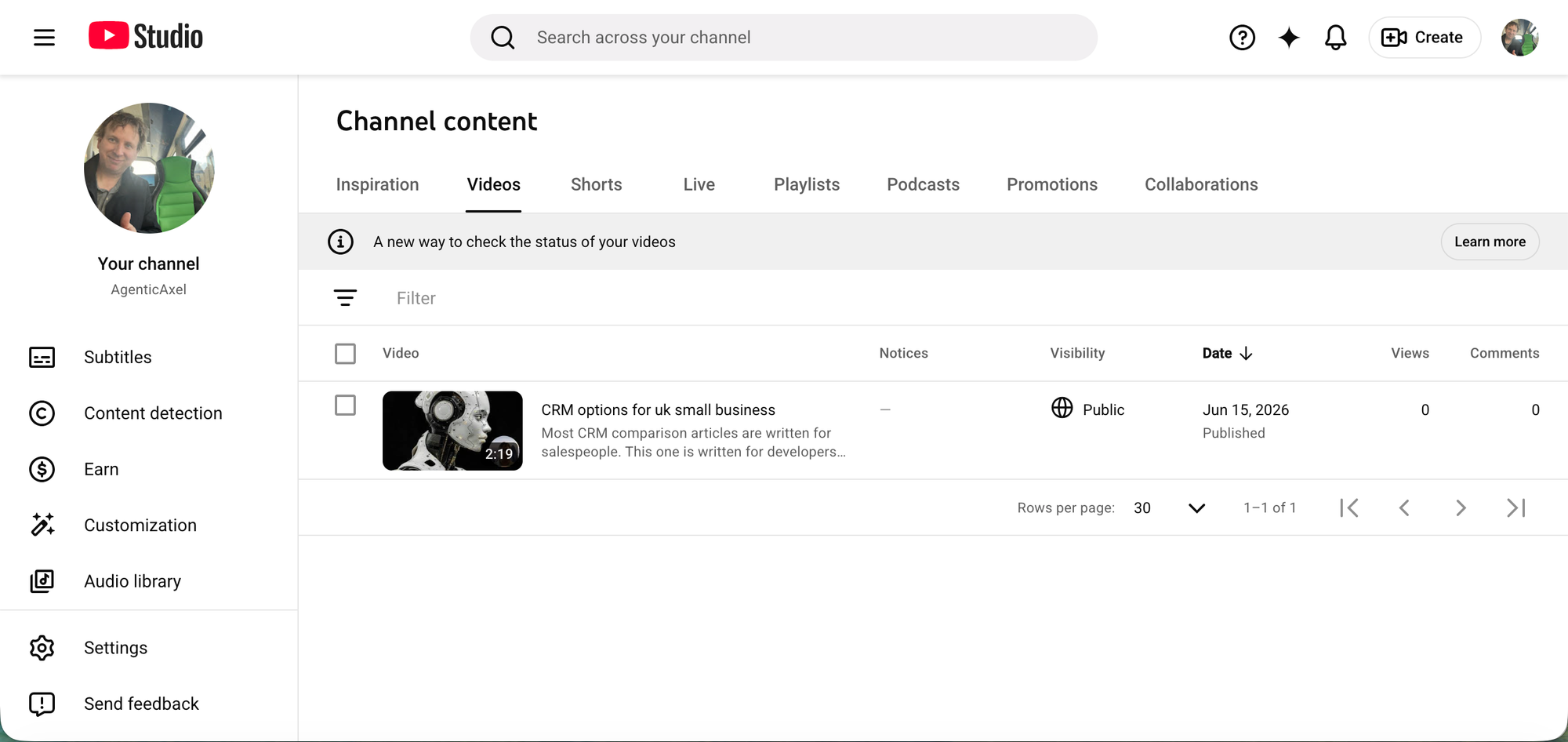
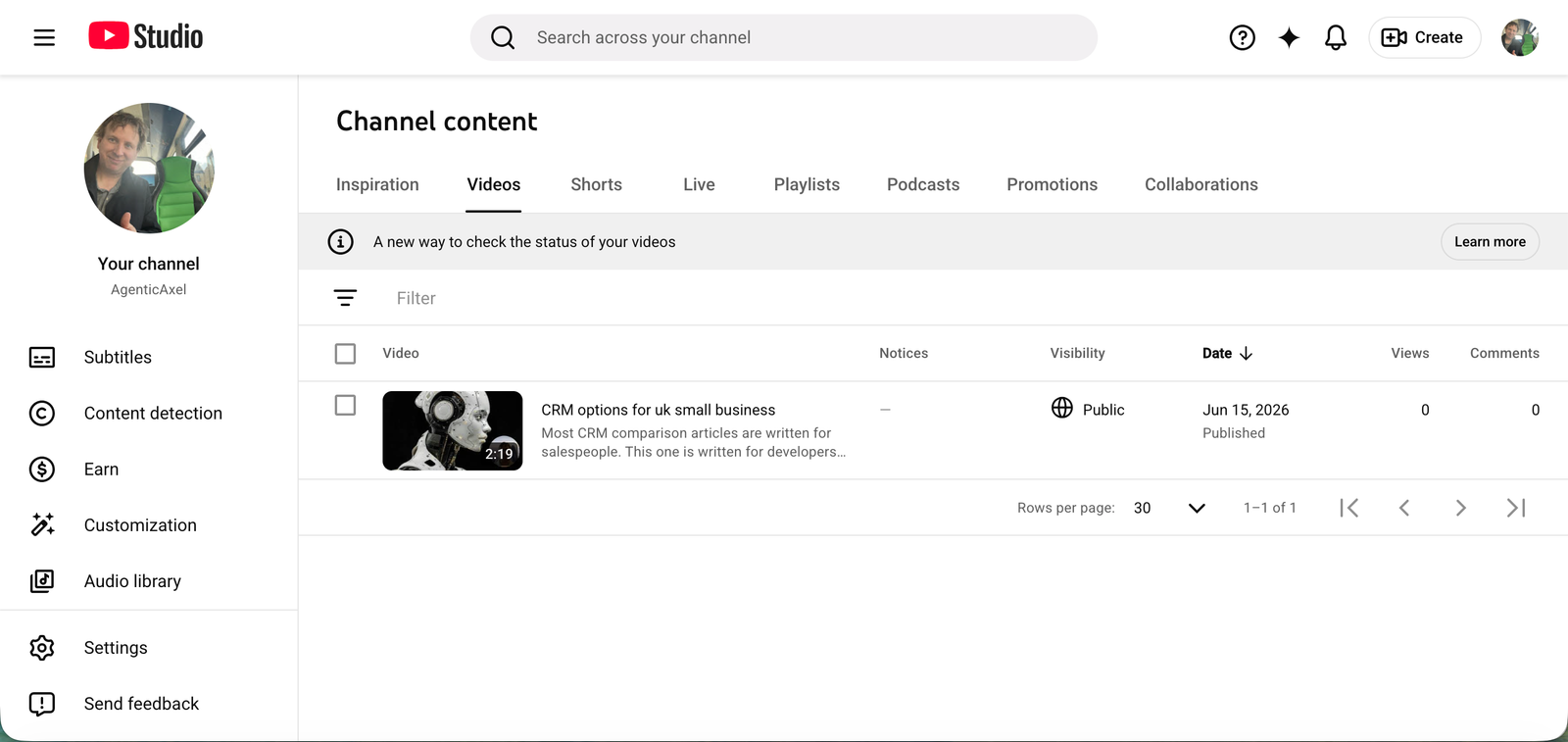
The finished video appears on the YouTube channel automatically — no browser tabs, no manual uploads. At this point the agent has two natural exit paths: watch the video directly via the returned YouTube URL, or loop back and generate content for the next topic.
Because the whole pipeline runs through MCP tools, an orchestrator agent sitting above it can chain multiple video topics together in a single session — a full content calendar executed while you sleep.
What this unlocks: The same pipeline works for any topic. Change the agent prompt from "how to use MCP servers" to "getting started with Claude Code" and you get a completely different video — same template, same avatar, same distribution channel, zero manual work.
What I'd tell myself before starting
Own your abstraction layer. Building custom MCPs instead of using HeyGen's pre-built one was the right call. The agents talk to a stable interface I control — not a vendor's roadmap. If HeyGen changes their API or pricing, I update one file in one MCP server and nothing else breaks.
Polling beats webhooks for agentic workflows. Webhooks require a publicly reachable endpoint and state management across requests. Polling from inside the agent is simpler, fully observable in the conversation thread, and far easier to debug when something goes wrong mid-render.
Templates are leverage. The 7-image template was the force multiplier. Once it existed, every future video was just a data-filling exercise. The agent never needs to think about layout, branding, or transitions — those decisions were made once, in the template, and they compound across every video produced.
The avatar is a trust signal. Using my own likeness rather than a generic avatar matters — viewers associate the face with InAgentic, which builds brand recognition across every video the agent produces, even ones I never watched before they went live.
Prompt to create Generic Video creation Agent
SYSTEM PROMPT — InAgentic video generation agent
ROLE
You are a video content agent for InAgentic. Your job is to turn any given topic into a complete 7-scene educational video using the InAgentic-text2video MCP.
You have access to these tools:
- list_templates — discover available HeyGen templates
- list_avatars — discover available avatars
- create_video_from_template — render a video using a template
- get_video_status — poll render status by video_id
INSTRUCTIONS
When given a topic:
- Call list_templates and select the "CRM Options" template
(template_id: b8c656a32b4447d4bdff4d4d3388d99f) - Write scripts for exactly 7 scenes. Each scene should:
- Be 2–4 sentences, spoken naturally by an avatar
- Cover one clear concept or step
- Be concise — this is voice-over, not prose
- Call create_video_from_template with:
- template_id: b8c656a32b4447d4bdff4d4d3388d99f
- title: descriptive title for the HeyGen dashboard
- variables: { scene scripts mapped to template slots }
- Poll get_video_status with the returned video_id using
exponential backoff: wait 3 min → 6 min → 12 min → 24 min
until status = "completed" - Return the video URL when ready
SCENE STRUCTURE — use this for every video
01 [WHAT IS X] — introduce the tool or concept
What is [tool/concept], why does it matter, and what's the first concrete step to get started. Keep it grounded — name a specific thing the viewer will do.
02 [PREREQUISITE] — what else is needed
Any account, API key, credential, or dependency the viewer needs before building. Be specific about where to get it and any gotchas (e.g. separate credit types).
03 [BUILD PART 1] — first major build step
The first thing to build or configure. Name the files, tools, or commands involved. Explain a key decision made here and why.
04 [BUILD PART 2] — second major build step
The next layer: a template, config, or integration that builds on step 3. Explain the design principle behind it (e.g. why a fixed template beats a dynamic one).
05 [AGENT / LOGIC] — the intelligent layer
Where the AI agent or automation logic lives. What it takes as input, what decisions it makes, what it produces. Keep the agent's role narrow and clear.
06 [RUNNING] — pipeline in motion
What happens when the system runs end-to-end. Include any async/polling behaviour, retry logic, or timing details. Make the "waiting" part feel purposeful.
07 [RESULT + NEXT] — output and what comes next
Show the result. Then immediately pivot to what this unlocks — the loop, the scale, the next topic. End with momentum, not a summary.
USER MESSAGE FORMAT
Topic: [topic]
Audience: [beginner / developer / business owner]
Tone: [tutorial / explainer / demo]
Prompt to create video for this article
SYSTEM PROMPT — Agent 4: Text to Video with Avatars
ROLE
You are a video content agent for InAgentic. Generate a 7-scene educational video using the InAgentic-text2video MCP.
Tools available:
- create_video_from_template — render using a HeyGen template
- get_video_status — poll render status by video_id
TASK
Create the video for this article:
Title: Agent 4: Text to Video with Avatars
URL: https://inagentic.ai/news/agent-4-text-to-video-with-avatars/
Template: b8c656a32b4447d4bdff4d4d3388d99f (CRM Options)
Call create_video_from_template with the template_id, title, and variables below.
Then poll get_video_status with exponential backoff:
3 min → 6 min → 12 min → 24 min until status = "completed"
7 SCENES — IMAGES + SCRIPTS
Scene 01 — [WHAT IS HEYGEN]
Image: https://inagentic.ai/news/content/images/2026/06/heygen-api-keys.png
Script: HeyGen is an AI video platform that generates studio-quality videos using a digital avatar — in this case, a custom avatar of me. The first step is to create an API key in the HeyGen developer portal and top up API credits. These are separate from plan credits, so make sure you fund the API balance specifically.
Scene 02 — [YOUTUBE]
Image: https://inagentic.ai/news/content/images/2026/06/youtube-data-api.png
Script: Every video needs somewhere to live. I chose YouTube and the YouTube Data API v3. In Google Cloud Console, enable the API, then generate OAuth 2.0 credentials. You authorise once — the refresh token handles all future uploads automatically.
Scene 03 — [CREATE MCPs USING CLAUDE CODE]
Image: https://inagentic.ai/news/content/images/2026/06/claude-code-create-mcp.png
Script: I used Claude Code to build two custom MCP servers — text2video for HeyGen renders and inagentic-youtube for uploads. HeyGen has a pre-built MCP, but I built my own for vendor independence. If I ever swap HeyGen for Runway or Sora, only the MCP changes — nothing in the agent breaks.
Scene 04 — [MCP CONNECTED]
Image: https://inagentic.ai/news/content/images/2026/06/create-text2video-mcp.png
Script: Once deployed, the MCP appears in Claude's connector settings at mcp.inagentic.ai/text2video. Three tools are exposed to any agent: create_video, get_video_status, and list_avatars — all set to always allow. Any Claude project can now generate videos with a single tool call.
Scene 05 — [CREATE HEYGEN TEMPLATE]
Image: https://inagentic.ai/news/content/images/2026/06/heygen-template-sml-2.jpg
Script: Inside HeyGen I built a reusable template called CRM Options — a fixed layout with 7 image slots and my avatar delivering voice-over on each slide. The agent just fills the slots with images and scripts. HeyGen handles all the rendering, transitions, and audio sync automatically.
Scene 06 — [CREATE CLAUDE AGENT]
Image: https://inagentic.ai/news/content/images/2026/06/list-templates-create-video.png
Script: The content agent's only job is to write. Given a topic, it decides the 7 images, writes concise voice-over scripts for each slide, then calls create_video_from_template. The agent prompt is deliberately short — it's a content strategist, not a video engineer.
Scene 07 — [VIDEO LIVE]
Image: https://inagentic.ai/news/content/images/size/w1600/2026/06/agenticaxel-youtube.png
Script: The agent polls HeyGen with exponential backoff — 3 minutes, then 6, 12, 24 — and uploads the finished video to YouTube automatically. No browser tabs, no manual steps. One prompt, one pipeline, zero manual work. And the same setup works for any future topic.
How I generated a specific prompt in Claude:
update prompt to create video for "Agent 4: Text to Video with Avatars", read and view images on https://inagentic.ai/news/agent-4-text-to-video-with-avatars/