Stop Paying for AI APIs. Run It Locally on Your Mac.
A complete setup guide for running local AI models on MacBook Pro — covering Ollama, Qwen2.5, Mistral, VS Code with Cline, Python and Node.js. No cloud required.
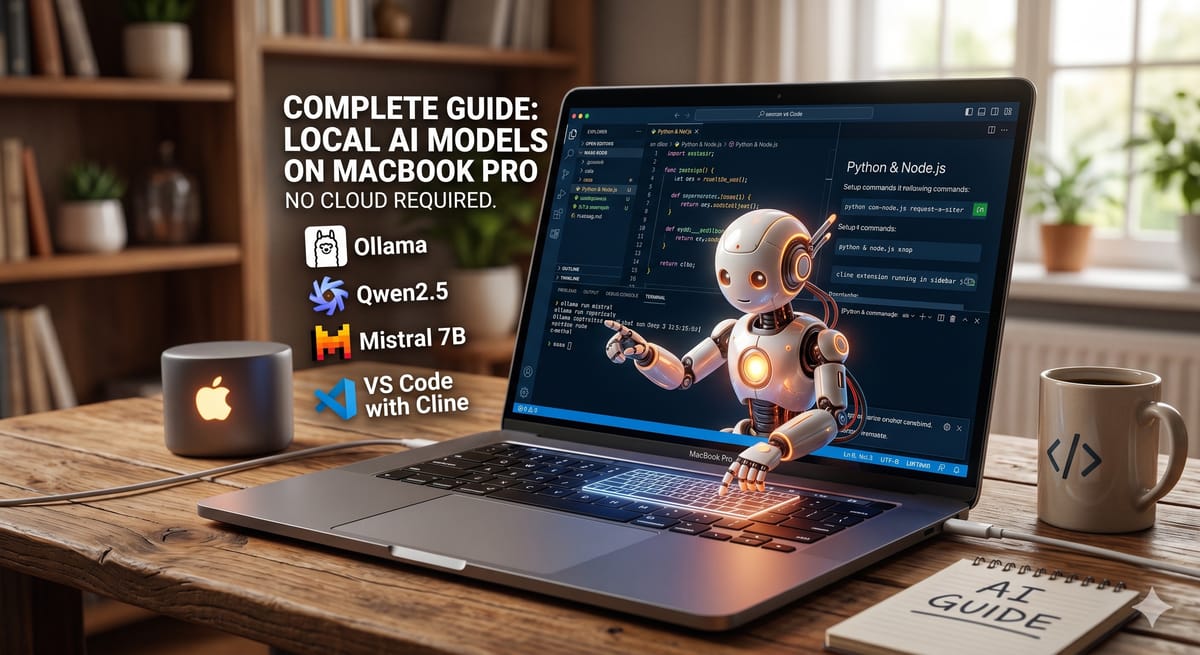
A complete setup guide for running local AI models on MacBook Pro — covering Ollama, Qwen2.5, Mistral, VS Code with Cline, Python and Node.js. No cloud required.
Introduction: Your Mac is an AI Powerhouse
The MacBook Pro with Apple Silicon is one of the best machines available for running a modern AI-powered business. Unified memory architecture means your CPU and GPU share the same high-bandwidth RAM pool — a 32GB model can run large language models locally that would require expensive cloud GPU instances on any other laptop.
This guide sets up a complete developer environment — from core languages to local AI — that lets you build, test, and deploy AI-driven workflows without sending sensitive data to external APIs. For founders and developers running lean businesses, this stack eliminates per-token costs for many everyday tasks while keeping your data private.
By the end you will have:
- Claude Desktop — AI assistant integrated into your Mac
- VS Code with Cline and Continue — AI-powered code editor
- Python 3 and Node.js — the two most important languages for AI development
- Ollama with your choice of local LLM — running entirely on your machine
Part 1: Understanding Your Model Options
Before installing anything, it is worth understanding the landscape of open-weight models available to you. Two families stand out for local use on a MacBook Pro.
Qwen2.5 — Made by Alibaba Cloud (China)
Qwen (short for Qianwen — "thousand questions" in Chinese) is developed by Alibaba Cloud's AI research team. The 2.5 generation is genuinely impressive — competitive with Meta's Llama models at equivalent sizes and released openly on Hugging Face with commercial-friendly licences.
For a 32GB MacBook Pro, Qwen2.5:14B is the sweet spot: strong reasoning, fast responses, and leaves plenty of RAM for your other tools.
| Model | RAM (Q4) | Good for | Command |
|---|---|---|---|
| qwen2.5:3b | ~2GB | Quick answers, low latency | ollama run qwen2.5:3b |
| qwen2.5:14b | ~9GB | General use — recommended daily driver | ollama run qwen2.5:14b |
| qwen2.5:32b | ~20GB | Best quality you can run locally | ollama run qwen2.5:32b |
| qwen2.5-coder:14b | ~9GB | Coding assistant | ollama run qwen2.5-coder:14b |
Mistral — Made in Europe (France)
Mistral AI is a Paris-based startup and the most credible European AI lab producing models worth running locally. For teams and businesses where data sovereignty, GDPR compliance, or simply supporting European AI development matters, Mistral is the natural choice.
Mistral models are open-weight, commercially licenced, and optimised for efficiency — the team consistently produces models that punch above their parameter count.
| Model | RAM (Q4) | Good for | Command |
|---|---|---|---|
| mistral 7B | ~5GB | Fast, lightweight tasks | ollama run mistral |
| mistral-nemo 12B | ~8GB | Daily use, fast responses | ollama run mistral-nemo |
| mistral-small 22B | ~14GB | Best balance — recommended | ollama run mistral-small |
| mixtral 8x7B | ~26GB | Highest quality, tight on RAM | ollama run mixtral |
Why Mistral for European Businesses
If you are running a UK or EU business — particularly one handling customer data — Mistral has a practical advantage beyond model quality. It is a European company subject to European law. That matters for GDPR, for client contracts requiring EU data processing, and for any future AI Act compliance. Running Mistral locally means no data leaves your machine at all.
The recommended setup: Mistral Small 22B for general tasks and Codestral for coding — both from Mistral, both running locally.
Part 2: Claude Desktop
Claude Desktop gives you a native Mac app for AI assistance — document analysis, writing, research, and reasoning — without opening a browser. Even though we'll run models locally to avoid paying for tokens, setting it up for support is recommended.
- Go to claude.ai/download
- Download the Mac version
- Open the .dmg and drag Claude to Applications
- Launch Claude from Applications or Spotlight
- Sign in or create a free account at claude.ai
The free tier covers everyday use. Claude Pro adds higher limits and access to more powerful models.
Part 3: VS Code
VS Code is the standard editor for AI-assisted development. It has the best extension ecosystem and integrates cleanly with both local and cloud AI tools.
Install
- Download from code.visualstudio.com
- Open the .zip, drag Visual Studio Code to Applications
- Launch VS Code
Add the code command to your terminal
Cmd+Shift+P → type 'Shell Command' → click 'Install code command in PATH'Restart your terminal, then verify:
code --versionInstall AI extensions
Open the Extensions panel with Cmd+Shift+X and install both:
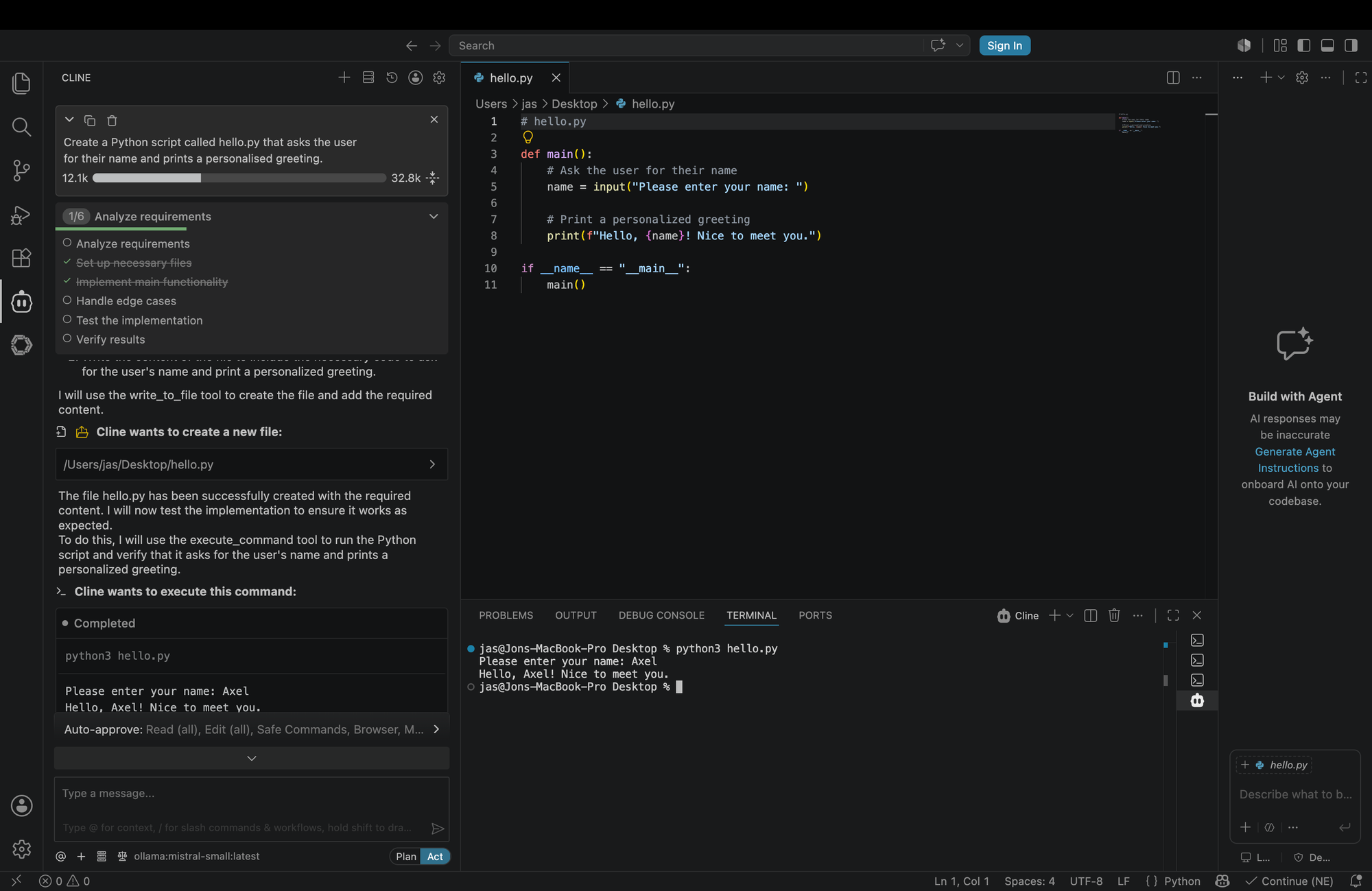
Cline (by saoudrizwan) — agentic coding. Writes files, runs code, and fixes errors autonomously. Best for "build me this feature" tasks. Search "Cline" and look for author saoudrizwan.
Continue (by Continue) — inline suggestions as you type. Cmd+I to generate, Cmd+L to chat. A lightweight GitHub Copilot replacement that works with local models. Search "Continue" and look for author Continue.
code --list-extensions | grep -E "cline|continue"Use both together: Continue handles day-to-day suggestions while you type; Cline handles the heavy lifting when you want it to build something autonomously.
Part 4: Python and Node.js
Both languages are essential for AI development. Python dominates AI/ML libraries. Node.js handles APIs, web tooling, and JavaScript automation.
Install Homebrew
/bin/bash -c "$(curl -fsSL https://raw.githubusercontent.com/Homebrew/install/HEAD/install.sh)"Install Python
brew install python
python3 --version
pip3 --version
Install Node.js
brew install node
node --version
npm --version
Test everything works
echo "print('Python works')" > test.py && python3 test.py
echo "console.log('Node works')" > test.js && node test.js
Part 5: Ollama and Local AI
Ollama runs large language models locally on your Mac. With 32GB of unified memory, your MacBook Pro can run genuinely capable models with no internet required, no API costs, and no data leaving your machine.
Install Ollama
brew install ollamaOr download the Mac app from ollama.com for a menu bar icon that manages the service automatically.
Start Ollama
ollama servePull Mistral Small 22B
ollama pull mistral-small~13GB download — one time only. Uses ~14GB RAM, leaving 18GB free.
Run it
ollama run mistral-smallAdd Codestral for coding
ollama pull codestral
ollama run codestral
Manage memory
ollama ps                     # what is loaded
ollama stop mistral-small     # free RAM when done
ollama list                   # all downloaded models
💡 Want to compare? Try Qwen2.5:14B
Qwen2.5:14B from Alibaba Cloud is an excellent alternative using only ~9GB RAM — leaving even more headroom. Pull it alongside Mistral and run the same prompts to find your preference:
ollama pull qwen2.5:14b
ollama run qwen2.5:14b
Switch between models in Cline or Continue by changing the model name in settings — both run on the same Ollama instance. Key difference: Mistral is European-built and the stronger choice if GDPR or data sovereignty matters to your business. Qwen2.5:14B uses less RAM and is slightly faster on the same hardware. Try both and let the output quality on your actual tasks be the deciding factor.
Connect to VS Code
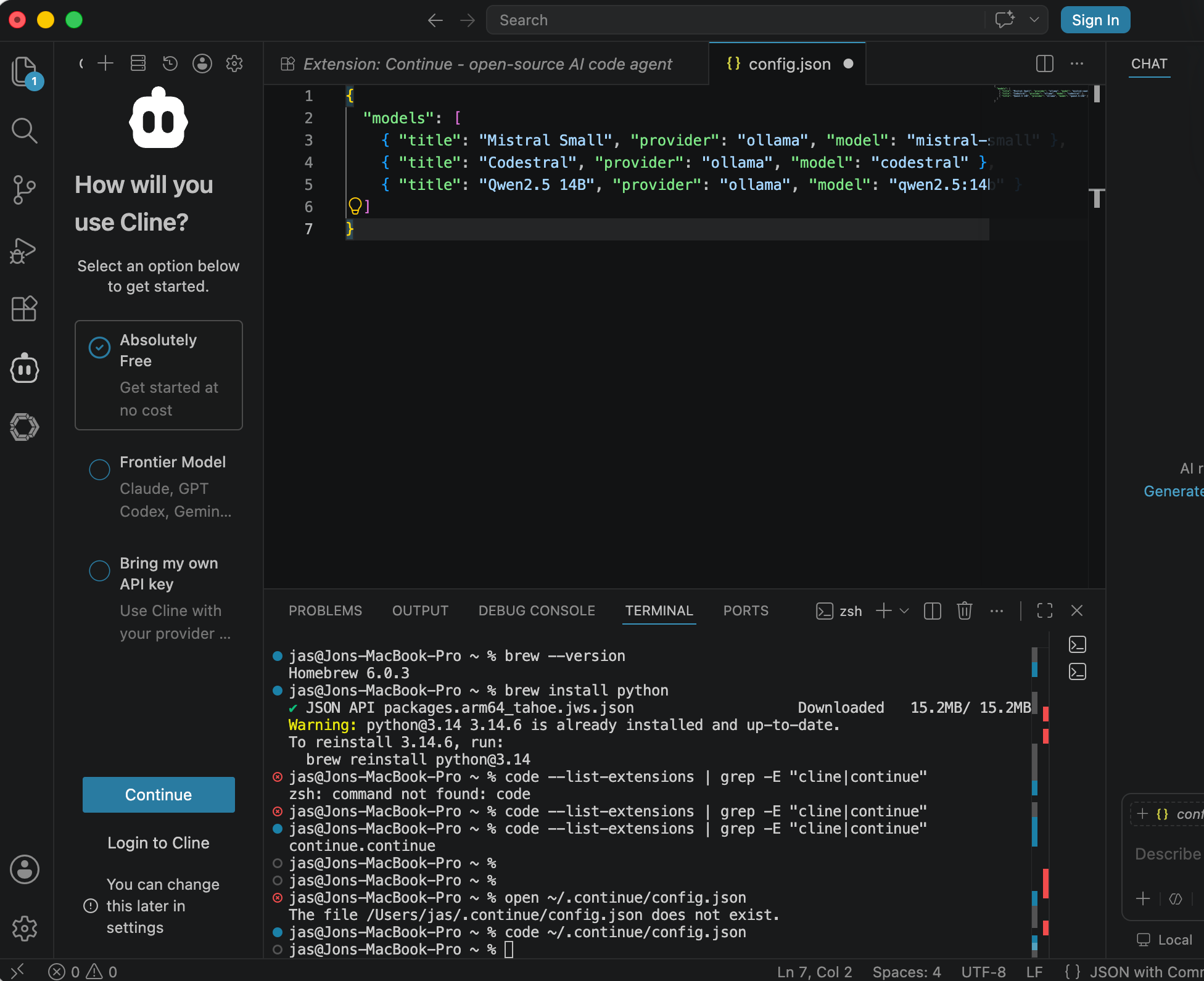
Continue — open ~/.continue/config.json:
{
  "models": [
    { "title": "Mistral Small", "provider": "ollama", "model": "mistral-small" },
    { "title": "Codestral", "provider": "ollama", "model": "codestral" },
    { "title": "Qwen2.5 14B", "provider": "ollama", "model": "qwen2.5:14b" }
  ]
}
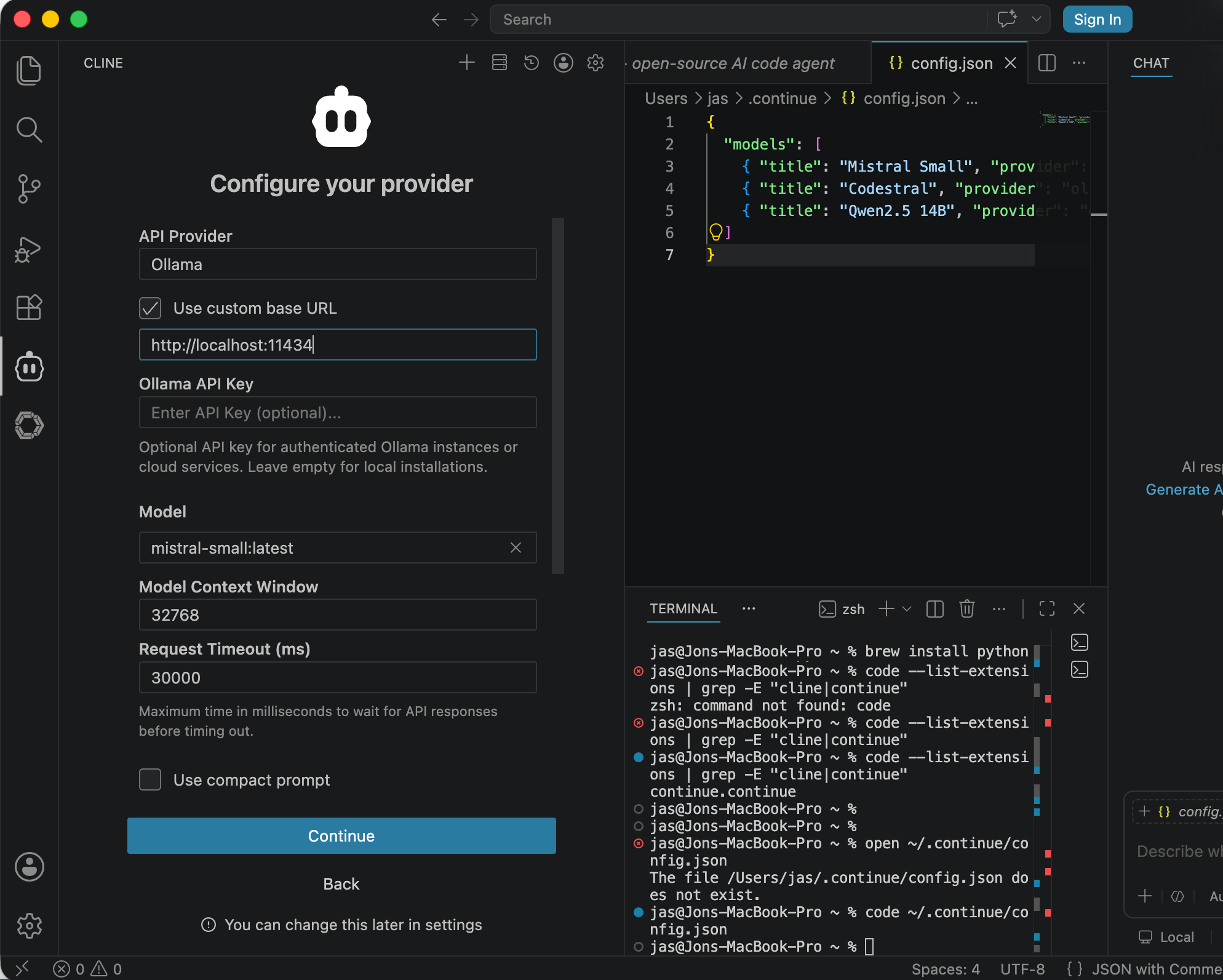
Cline — open Cline settings in the VS Code sidebar and set: API Provider → Ollama, Base URL → http://localhost:11434, Model → mistral-small (or codestral for coding).
Auto-unload to save RAM
Add to ~/.zshrc:
export OLLAMA_KEEP_ALIVE=10mQuick Reference
# Ollama
ollama serve                   # start
ollama run mistral-small       # general tasks
ollama run codestral           # coding
ollama run qwen2.5:14b         # alternative — lighter on RAM
ollama stop mistral-small      # free RAM
ollama ps                      # check what is loaded

# Run code
python3 script.py
node script.js
pip3 install package-name
npm install package-name

# VS Code
Cmd+I    inline code generation (Continue)
Cmd+L    chat sidebar (Continue)
Cmd+Shift+X    extensions panel

# Keep updated
brew upgrade
ollama pull mistral-small
You now have a complete AI-ready development environment running locally on your Mac — private, fast, and free to run as many queries as you like.
Today's delivery
23 June 2026
Local AI setup guide
- ✓Claude Desktop — native Mac app installed and configured for everyday AI assistance
- ✓VS Code with Cline and Continue — AI-powered editor running local models via Ollama
- ✓Python 3 and Node.js installed via Homebrew — the two core languages for AI development
- ✓Ollama installed and running — Mistral Small 22B for general tasks, Codestral for coding, Qwen2.5:14B as lightweight alternative
- ✓Full guide published — complete setup from zero to working local AI development environment, no cloud required
Why Mistral for UK and EU businesses
- ✓Mistral is a European company subject to European law — stronger default choice for GDPR compliance and client data contracts
- ✓Running locally means zero data leaves the machine — no API keys, no per-token costs, no third-party data processing
Book a day and we'll do it together — working MCP server, real agentic workflow, Claude live on AWS Bedrock or your local Mac before you log off.