
From Content to Data: Adding Analytics
A few days ago the Workshop Assistant learned to search our own content. Today's arc was the opposite direction: instead of teaching a system to read what we publish, we set up the tooling to see who's actually reading it — across all four sites, not just the one with a working setup already.

A few days ago the Workshop Assistant learned to search our own content. Today's arc went the other way: instead of teaching a system to read what we publish, we built the tooling to see who's reading it, across all four sites, not just the one that already had a working setup. For an SME, this isn't a nice-to-have. Guessing what resonates is a luxury we can't afford. Analytics tells us exactly what's working, what isn't, and where to put our limited time next.
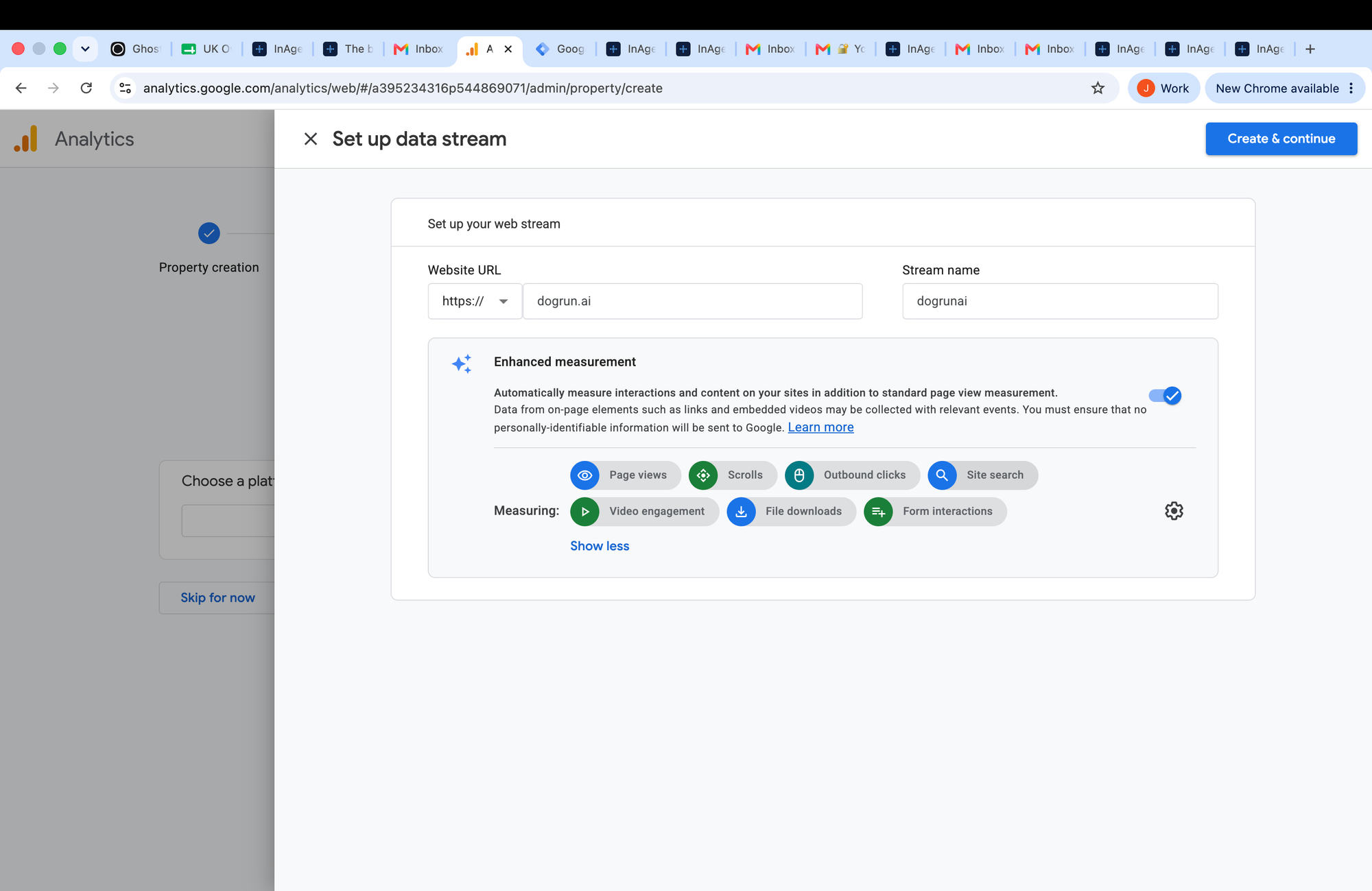
Rolling out GA4 across the sites
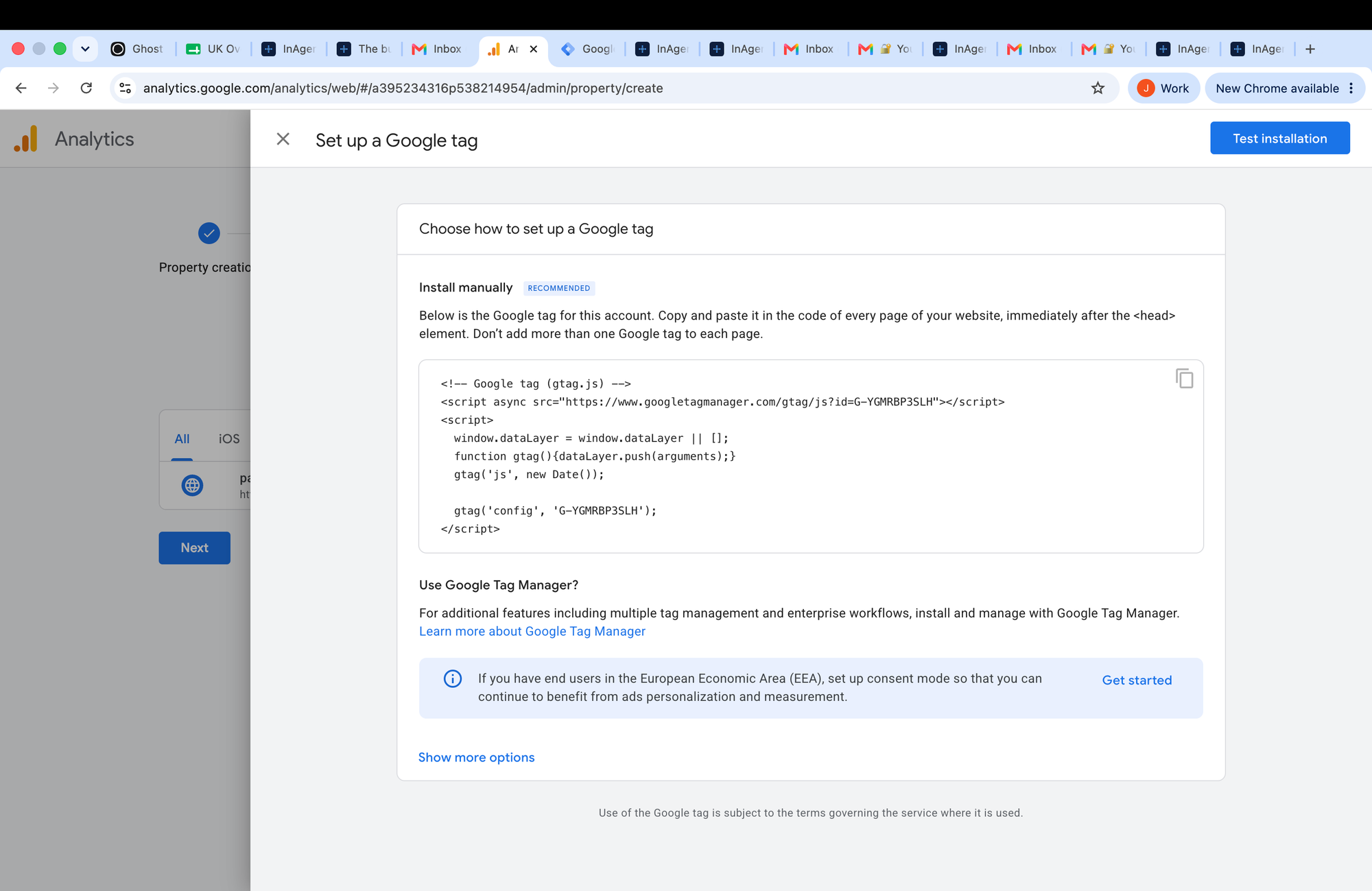
FileDone already had a GA4 tag wired in — that was the reference we copied. GA4 (Google Analytics 4) is Google's current analytics platform: it tracks visitor behaviour across a site and reports on it in one dashboard, which is exactly the visibility we're after. PancakePandas.co.uk, dogrun.ai, and InAgentic.ai didn't have one at all, so we created a fresh GA4 property for each in the same Google Analytics account and dropped the resulting gtag.js snippet into the same spot FileDone's already lived in. Four sites, one pattern, one line added per site.
Getting FileDone's blog measured — and the pattern for any Ghost site
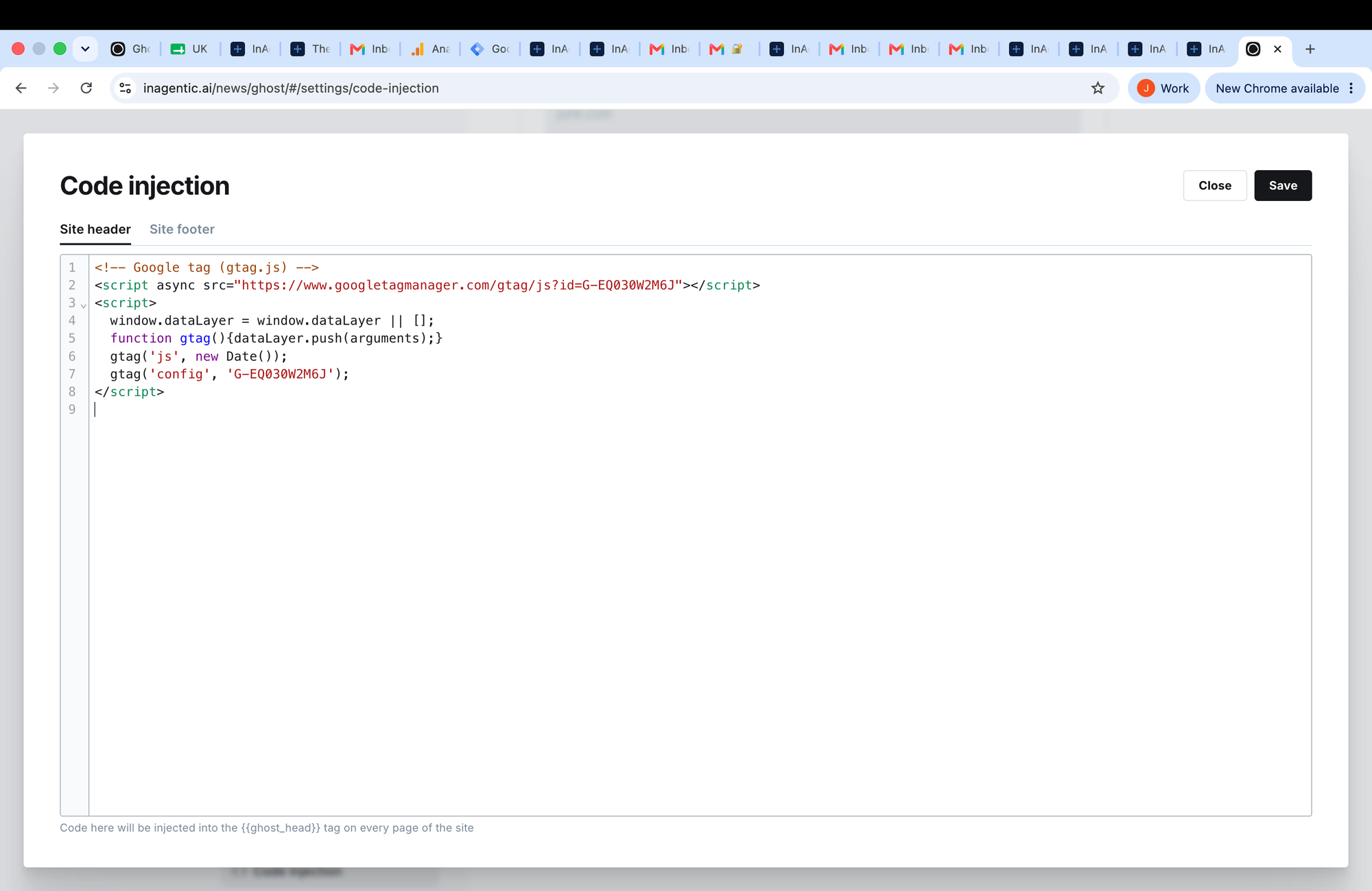
Before adding InAgentic's own tag, we checked FileDone's existing setup for completeness. That check surfaced a gap: filedone.co.uk/blog is a separate Ghost instance, with CloudFront routing that path straight to Ghost's own origin, bypassing our Next.js app entirely. Ghost stores its tracking snippets in two settings fields, codeinjection_head and codeinjection_foot, accessible via the Admin API. Checking those directly confirmed the main site had a GA4 tag; the blog didn't yet.
The fix: Ghost's admin UI, under Settings → Code injection, has a Site Header field built exactly for this. We pasted the gtag.js snippet in there and saved. Thirty seconds, done — and now every page on that blog is measured.
The bigger takeaway: a single domain can span multiple origins (main app, separate Ghost instance), so each one needs its own tag verified and set. With this fix, all four sites — FileDone (main + blog), Pancake Pandas, dogrun.ai, and InAgentic — now report into GA4.
Bringing the numbers into the dashboard
To show all four GA4 properties in one place, we needed server-side access via Google's Analytics Data API.
How to set it up:
- Skip the service account route if your org enforces
iam.disableServiceAccountKeyCreation— this is Google's default security posture on newer orgs, and it blocks downloadable keys outright. - Instead, reuse an existing OAuth client. We extended the same one already authorising Calendar access for the Daily Briefing feature, adding the
analytics.readonlyscope. - No new credential type needed — just one more scope on a login that already has Owner access to the GA4 properties.
Result: a "Core Analytics" dashboard section — a "Connect Analytics" button until the scope is granted, then a tile per site showing active users, sessions, and pageviews over the last 28 days.
gtag.js pattern copied across every site.